 Prowl
Prowl
Install Prowl
Install Prowl from the Chrome Web Store: it takes a minute and Prowl updates itself. You need no account besides GitHub.
Before you start
- Chrome 116 or newer. Prowl is built for and tested on Chrome.
- A GitHub account.
Steps
-
Add Prowl to Chrome
Open Prowl in the Chrome Web Store and choose Add to Chrome. Chrome lists what Prowl may access; the privacy page explains each permission.
-
Pin it
Click the puzzle-piece Extensions button in the toolbar, then the pin next to Prowl, so its icon stays in reach.
-
Open the side panel and sign in
Click the Prowl icon. The side panel opens on the sign-in screen. Choose Continue with GitHub, or paste a token. The sign-in guide explains both and the exact scopes.
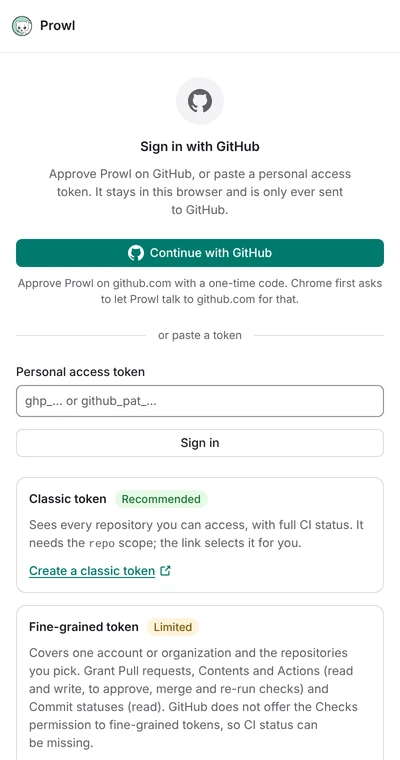
That is all. Prowl lists your pull requests and keeps them up to date, with the panel open or closed.

Update
Chrome updates Prowl from the store by itself. A new version reaches the store a few days after its GitHub release, once Google has reviewed it.
Install from a release zip
To run a release before it reaches the store, or without the store, load the zip yourself. Chrome does not update it: repeat these steps for each new release.
-
Download the zip
Open the latest release and download
prowl-vX.Y.Z.zipfrom the Assets list. Do not pick the "Source code" archives. -
Unzip it into a new folder
Choose a place you will keep. Chrome reads the extension from this folder every time it starts, so do not move or delete it. On macOS and Linux, run this where you saved the zip:
unzip prowl-v*.zip -d ~/prowl-extensionOn Windows, right-click the zip and choose Extract All. The folder must contain
manifest.jsondirectly, not inside another folder. -
Open the extensions page
Type
chrome://extensionsin the address bar. Turn on Developer mode, the switch at the top right. -
Load Prowl
Choose Load unpacked and select the folder from step 2. Prowl appears in your list of extensions.
-
Pin it and sign in
As in steps 2 and 3 above.
To update, unzip the new release over the same folder and select the reload button on
Prowl's card in chrome://extensions. Use the same folder every time: Chrome ties
your settings and your sign-in to its location, and a new location starts as a fresh install.
A zip install and a store install are separate extensions: keep only one.
If something does not work
-
"Manifest file is missing or unreadable" (zip install): you selected the
wrong folder.
Pick the one that holds
manifest.json. -
Clicking the icon does nothing: check that Chrome is version 116 or newer
(
chrome://settings/help), and that Prowl is switched on. - Sign-in problems: see the sign-in guide.
Check the download
Every release zip comes with a build provenance attestation and an SBOM. To check that a zip was built from this repository by its release workflow, use the GitHub CLI:
gh attestation verify prowl-v*.zip --repo aemard/prowlThe store install can be checked against the same zip, and any release can be rebuilt from source to the same bytes: see Verify a release.
Uninstall
Remove Prowl on chrome://extensions; Chrome deletes everything it stored. To end
its access to GitHub as well, revoke the token (see
Signing out and revoking access).
Build it yourself
Prefer to build from source? Follow Contributing and load
the dist folder in step 4. The code is on GitHub.